
Sections
A section is the concrete offering families register for—an instance of a class with its own schedule, capacity, registration window, and pricing. In your day-to-day language, you will likely refer to sections in EnrollmentHive as “classes”, and that is perfectly fine. See Classes vs Sections for a deeper explanation of our choice to call them sections.
Create New or Edit a Section
From the Sections page, click the green + New Section button. You can also start a new section from a class detail page with New Section there.
Either path opens the full New Section page. The form is organized into four blocks:
General Information
To start, you will enter basic information about your section.
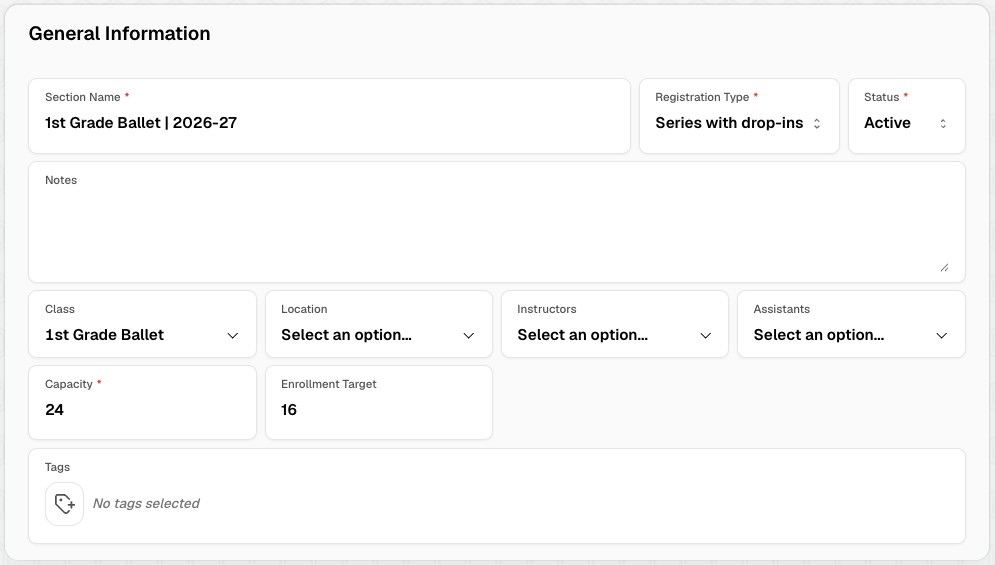
| Field | Required | Details |
|---|---|---|
| Section Name | Yes | Display name for this section (for example, 1st Grade Ballet | 2026-27 or Ballet Camp (June 2-5)). |
| Registration Type | Yes | Controls how students enroll in the section. Series — enroll for the full run of sessions Drop-in only — pay per session; no full-series enrollment Series with drop-ins — series enrollment plus optional per-session drop-ins |
| Status | Yes | Defaults to Active. Draft — not ready for public use Active — available according to registration settings Archived — retained for history |
| Notes | No | External notes displayed on registration page for this section. |
| Class | Yes | The class this section belongs to. |
| Location | No | Where the section meets. |
| Instructors | No | Primary instructors assigned to the section. |
| Assistants | No | Assistant instructors. |
| Capacity | Yes | Maximum number of students allowed to enroll. |
| Enrollment Target | No | Goal for how many students you want enrolled. Appears as a marker on the enrollment progress bar so you can see when you hit the goal (separate from hard capacity). |
| Tags | No | Organize and filter sections. Select a tag category, then choose tags. |
Days and Times
Next, configure how you will schedule this section.
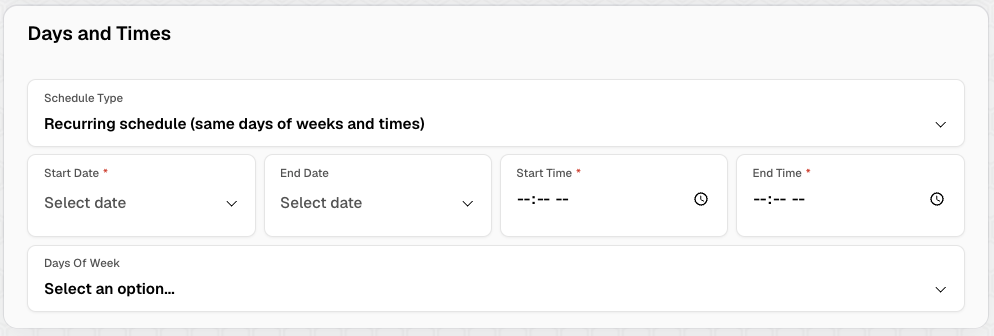
Schedule Type
| Option | When to use | What you set on this form |
|---|---|---|
| Recurring schedule (same days of week and times) | Weekly classes that repeat on fixed days/times | Start/end dates, start/end times, and days of week. Sessions are generated from that pattern. |
| Specific days and times | Camps, intensives, or irregular calendars | You do not enter the full calendar here. After saving, add individual days on the section’s Schedule tab. Optionally enter a Schedule Summary for Registration Page (for example, Mondays 2-3pm, Fridays 4-5pm) so families see a readable summary while registering. |
Recurring schedule fields
| Field | Required | Details |
|---|---|---|
| Start Date | Yes | First day of the section. |
| End Date | No | Last day of the section. |
| Start Time | Yes | Session start time. |
| End Time | Yes | Session end time. |
| Days Of Week | No | Days the section meets (for example, Mon and Wed). |
Specific days and times fields
| Field | Required | Details |
|---|---|---|
| Schedule Summary for Registration Page | No | Summary shown on the public registration page. For example, Mondays 2-3pm, Fridays 4-5pm. |
Registration
Controls when and how families can sign up.
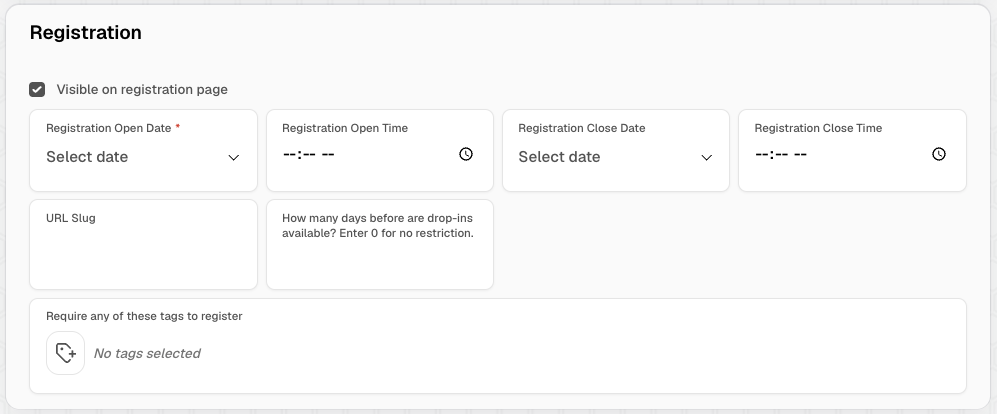
| Field | Required | Details |
|---|---|---|
| Visible on registration page | No | When enabled, the section can appear on the public registration page (subject to open/close dates). |
| Registration Open Date | Yes | First day families can register. |
| Registration Open Time | No | Time of day registration opens on the open date. Defaults to midnight. |
| Registration Close Date | No | Last day families can register. Leave blank if registration stays open. |
| Registration Close Time | No | Time of day registration closes on the close date. Defaults to midnight. |
| URL Slug | No | Optional slug for a nicer registration link. For example, enter ballet-2026 for http://yourstudio.enrollmenthive.app/register/section/ballet-2026. |
| How many days before are drop-ins available? | No | Shown for Drop-in only and Series with drop-ins. Limits how far ahead drop-in spots can be purchased. Enter 0 for no restriction. |
| Require any of these tags to register | No | Require students to have at least one of the selected tags to register. |
Billing
Billing configuration options change based on Registration Type and, for series sections, the selected payment plan.
For a deeper walkthrough of pricing choices, see Pricing a Section.
Series Billing
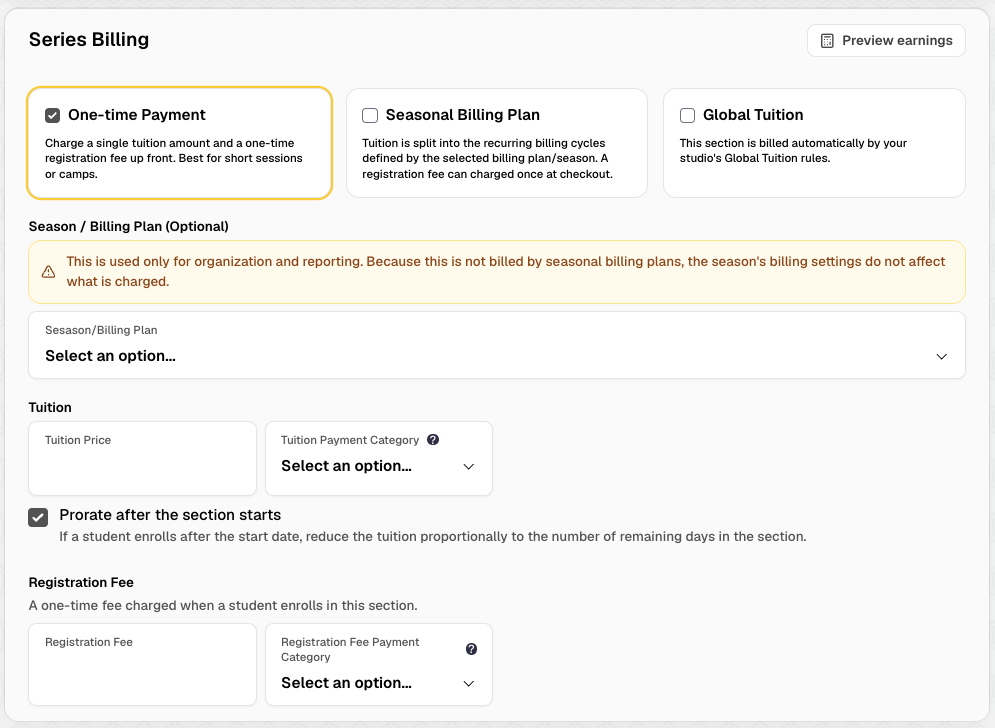
Choose one payment plan:
| Payment plan | Best for | How charging works |
|---|---|---|
| One-time Payment | Camps and short runs | Single tuition amount (plus optional registration fee) charged up front. |
| Seasonal Billing Plan | Full seasons with installment plans | Tuition is split across the billing cycles on the selected season/billing plan. Registration fee can be charged once at checkout. |
| Global Tuition | Studios using studio-wide tuition rules | Section is billed by your organization’s Global Tuition rules. Tuition Price still applies when Global Tuition is configured to use individual section pricing. |
Fields that change with the payment plan:
| Field | One-time | Seasonal | Global |
|---|---|---|---|
| Season / Billing Plan | Optional — for organization and reporting only | Used to generate tuition from the season’s billing periods | Optional — for organization and reporting only |
| Tuition Price | Amount charged for the section | Used with the billing plan | Used when Global Tuition is set to individual section pricing |
| Tuition Payment Category | Optional, but recommended | Optional, but recommended | Optional, but recommended |
| Prorate after the section starts | Available — reduces tuition for late enrollments based on remaining days | Not shown | Not shown |
| Collect first payment at checkout | Not shown | Optional — charge the first billing-cycle payment immediately at registration instead of waiting for the plan’s normal post date | Not shown |
Use Preview earnings to estimate revenue from the current billing setup before you save.
Drop-in Billing

Shown for Drop-in only and Series with drop-ins.
| Field | Required | Details |
|---|---|---|
| Drop-in Price | Yes | Price charged for a single drop-in session. |
| Payment category | No | Payment category for drop-in charges. |
Save
Click Save Section at the bottom of the form (or Save in the header).
If required fields are missing (for example, Class or Capacity), the form highlights them and does not save.
After you create the section, open the section to review enrollments, edit details, and manage the Schedule tab (especially if you chose Specific days and times). You can adjust pricing later if needed — see Pricing a Section.
Structuring Your Sections
Here are a few scenarios you might find in your studio and how we recommend structuring your classes and sections for them.
You offer “1st Grade Ballet” at two different times during the week. Students enroll in one or the other, and their roster is tracked separately.
We would recommend creating a “1st Grade Ballet” class, and then creating two sections, one for each day, and adding the day of week to the name for it to be clearer to you and your parents. For example, “Monday 1st Grade Ballet | 2026-27” and “Thursday 1st Grade Ballet | 2026-27”.
You offer ballet intensives taught by guest instructors throughout the year.
You could have only one class for all Ballet Intensives. However, remember to keep the description generic enough for all sections. You can always add specifics in the notes area of each section. So your class would be “Ballet Intensive”, and your sections could be “Rachel Hansen Ballet Intensive” and “Brendan Hansen Ballet Intensive”.
You could create separate classes for ballet intensives if they have different descriptions or qualifications, such as different age or grade requirements. For example, you might have a “Junior Ballet Intensive” as well as a “Advanced Ballet Intensive”. Then, you can create sections of each of them so users can easily filter down to based on ages and/or grades for their students.
You can also always add a new session to a section if you want to keep enrollment separate for each time/day but still organize it under one section. This is great if you are keeping all details the same, other than time/day.
You only offer on section of “11th Grade Tap” but it is the same every year.
You would have a class called “11th Grade Tap”, and each year you would create a section for it, including the year in the name so it is clear to everyone which year that section is for, For example, “11th Grade Tap | 2026-27”.