
Taking Attendance
Taking attendance is very easy in EnrollmentHive.
To view the attendance sheet for a session, there are three places you can go:
- The Schedule tab
- Your Dashboard
- The section’s schedule tab
The easiest place to go is the Schedule tab. This tab gives you a weekly view of everything going on at the studio. To find the class you want to take attendance for, you might need to click “Only Me” to filter down the entries if you have a lot of them. When you found the session you want to take attendance for, simply click it.
The Attendance Page
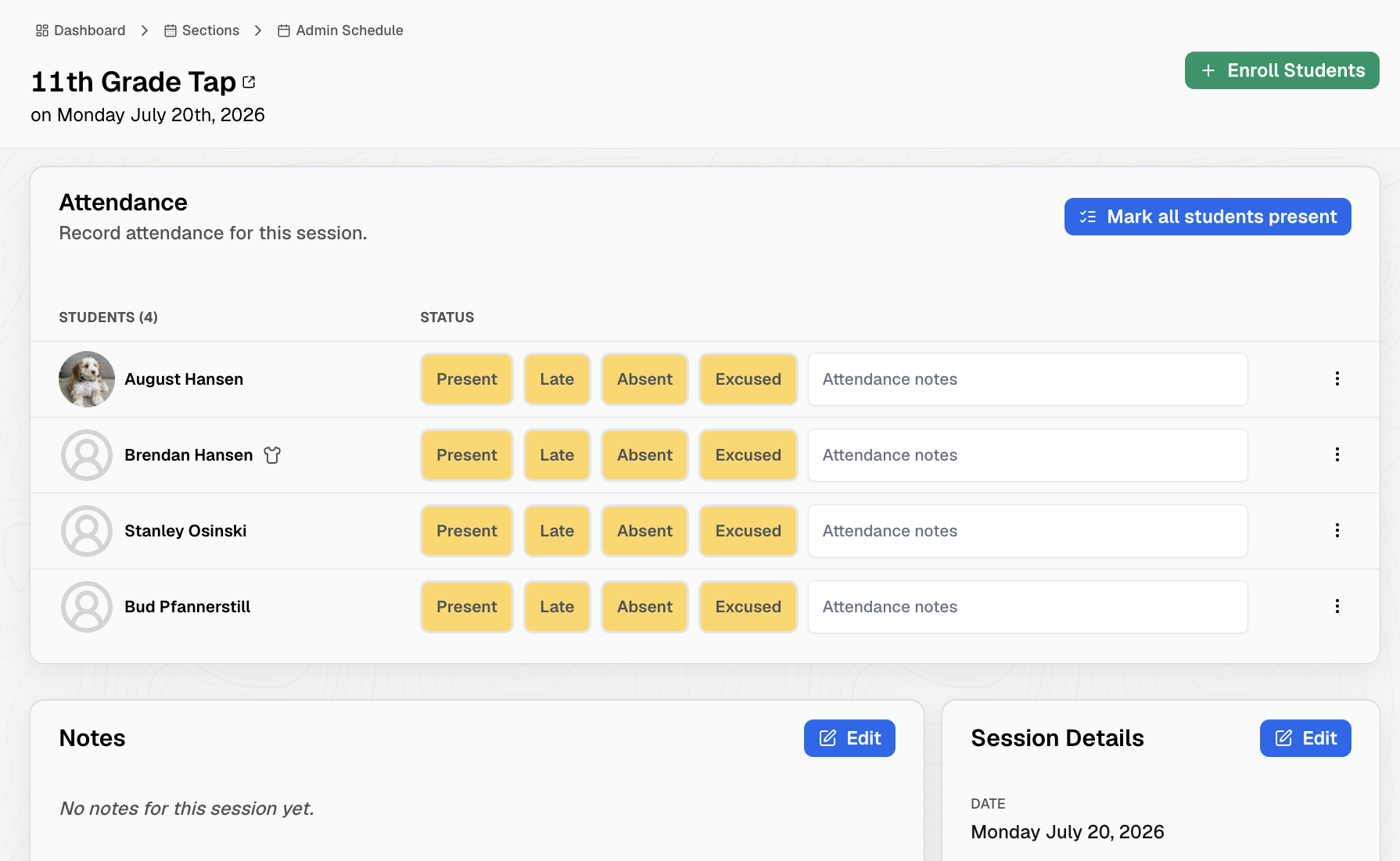
On this page, you can easily click or tap the buttons to mark each student as present, late, absent, or excused.
You can also make any notes about their attendance, though that textbox usually gets filled out by the parent when they report an absence.
If all students are present, you can simply click the “Mark all students present” button and every student will be marked as present.
You can make any notes on this page for lesson plans, or substitute notes if you are going to be absent.
You can also quickly take any notes on any of the students by using the three dots on the student line, and clicking “View Notes”. From here you can make and view notes in any of your preconfigured note categories.
Handling a Walk-in
If your studio allows for walk-ins, you can use the “+ Enroll Student” button in the top right corner to enroll a student as drop-in for this session.
In the pop-up, you can select the student from your existing list of students. Alternatively, if they are a friend/relative of one your students you can select “Visiting Student” and log the information about the student. This will create a “Visitor Student” profile under the selected household and bill the primary account on the selected household.
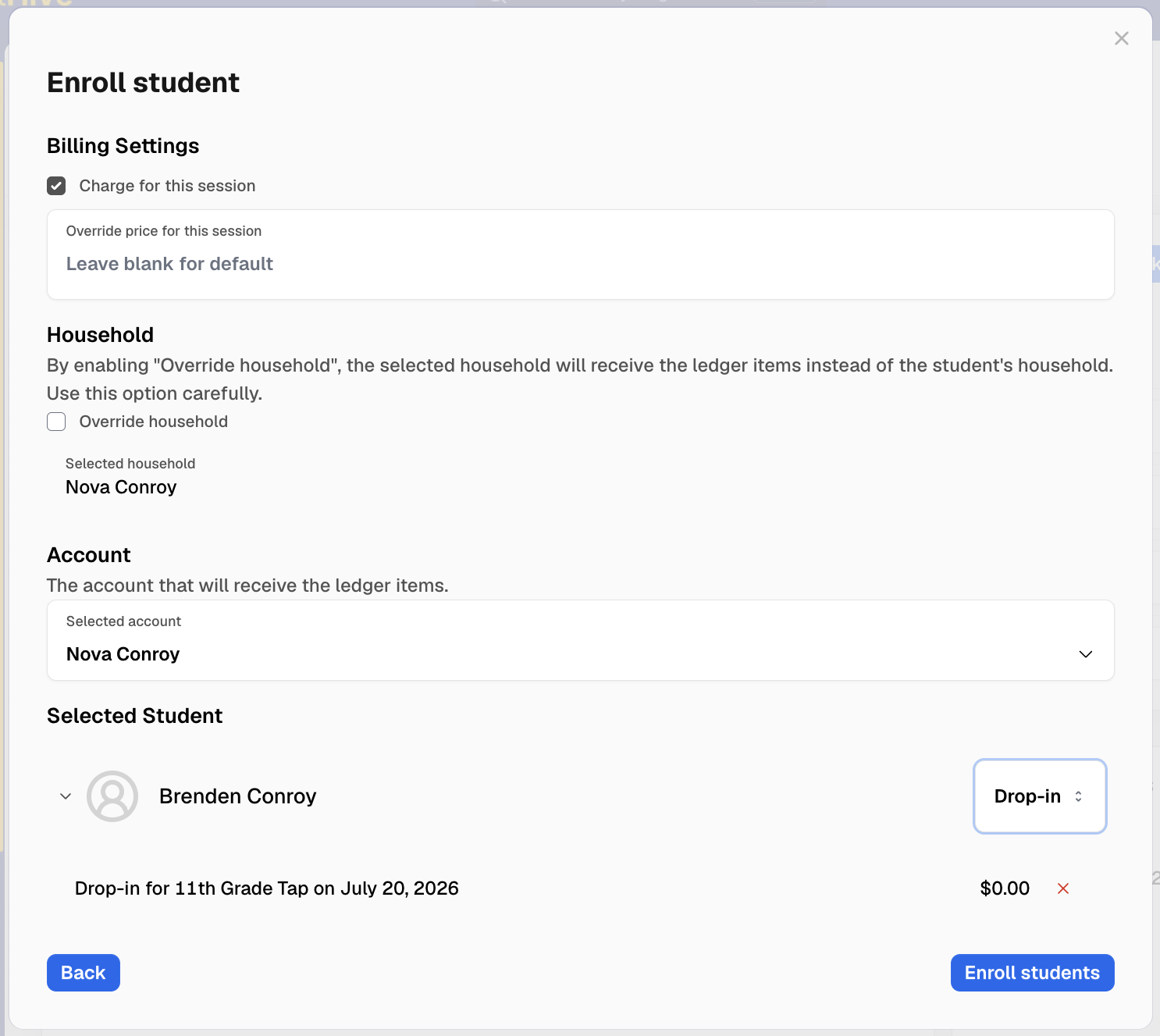
Once you’ve chosen the student, you can choose how/if to bill for this drop-in/trial.
You can override the session price, change which household/account is being billed, or even remove the drop-in charge entirely.
When ready, click the “Enroll students” button to enroll them for this session.
As a note, you can do this “drop-in” enrollment even on sections that do not have drop-ins enabled.